




 1250
1250
The first time you will access Mathematica through NTTRI’s company license please follow the below steps to gain access.
1) Request access to [email protected], so that SecureIT can enable authentication through Okta.
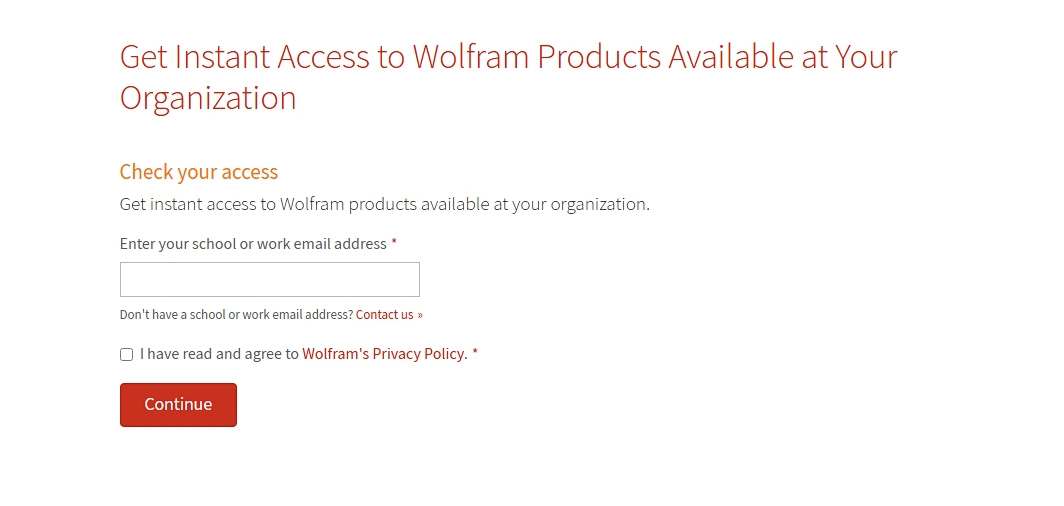
2) Once you have the Mathematica tile on your Okta dashboard, go to https://www.wolfram.com/siteinfo/ and input your NTT Research e-mail address.
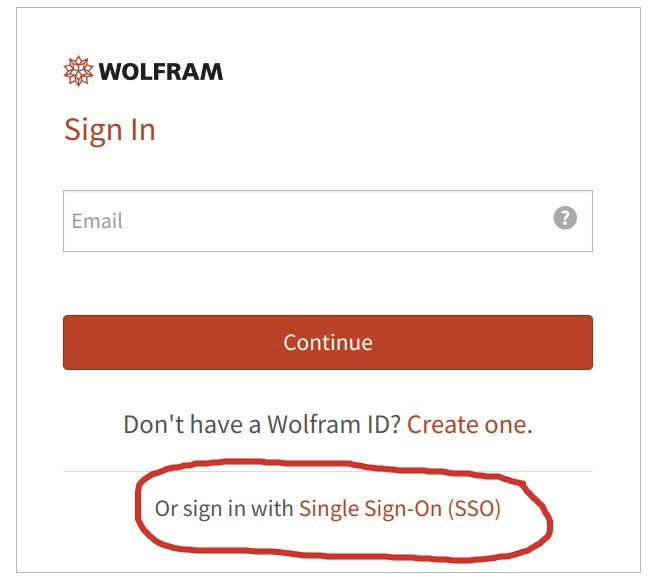
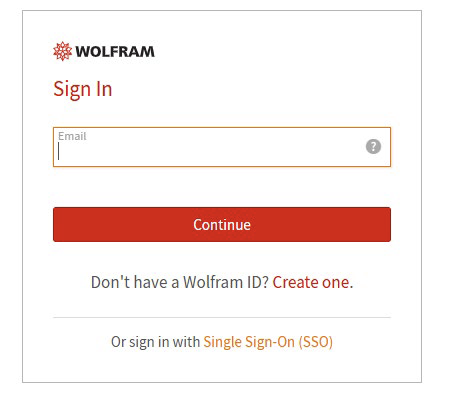
3) On the following page, you will select Single Sign-On (SSO) and input your NTTRI Okta credentials when prompted.
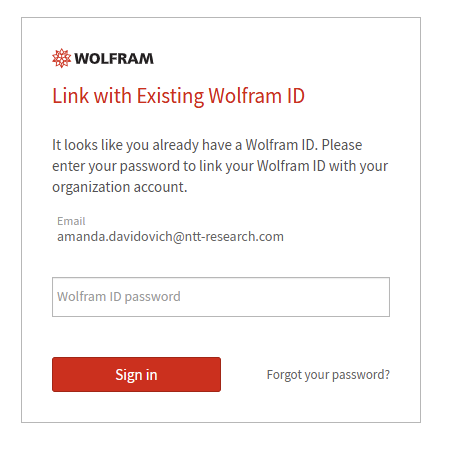
3b) If you have an existing Wolfram Mathematica account using your NTTRI e-mail address, you will see the screen below. Input your Wolfram Password as prompted.
4) The download for Mathematica will start automatically.
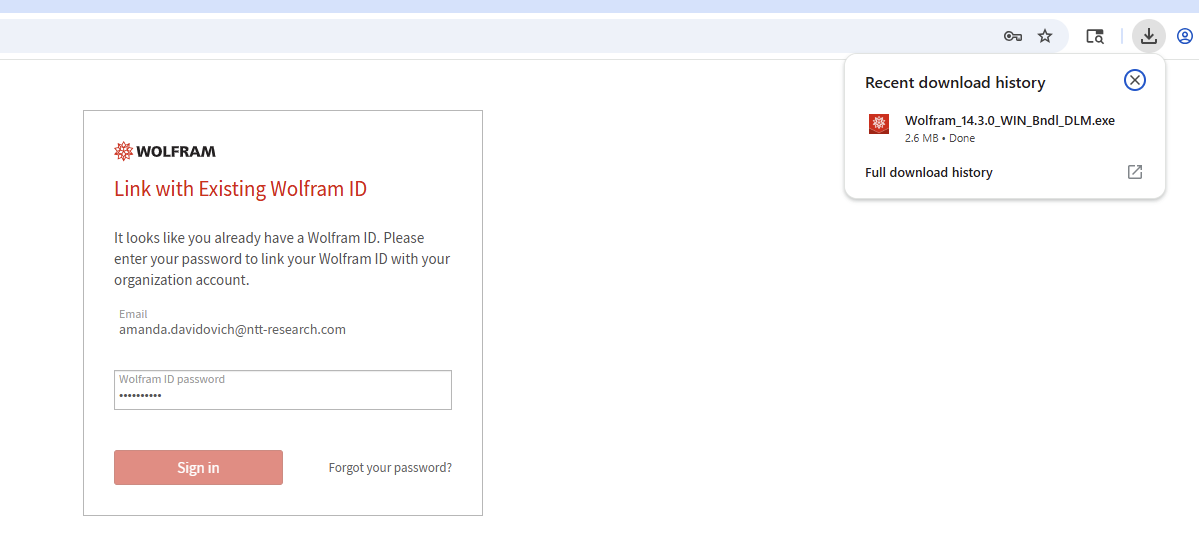
5) Click on the downloaded file and then the Wolfram Download Manager will appear and start downloading the software.
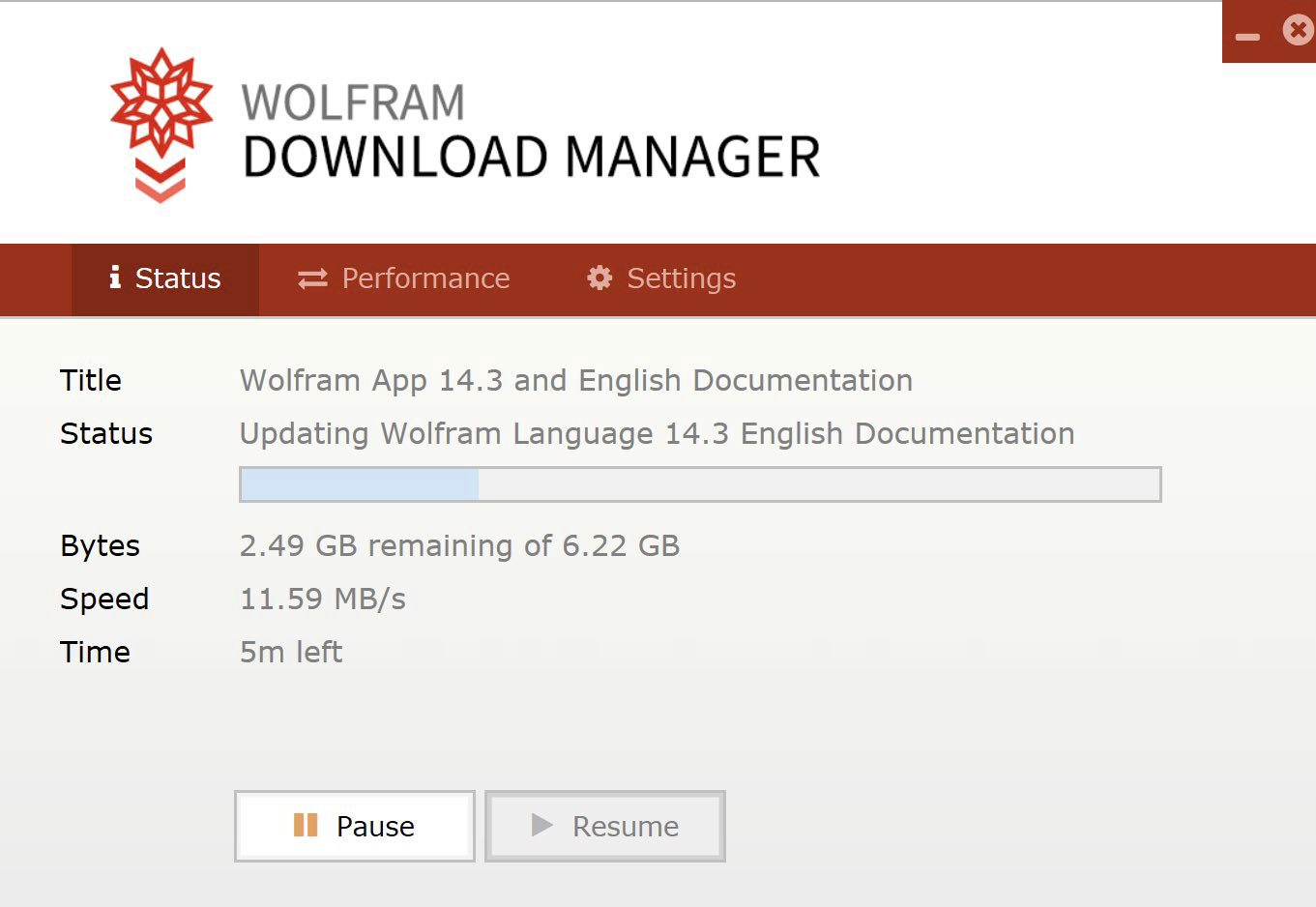
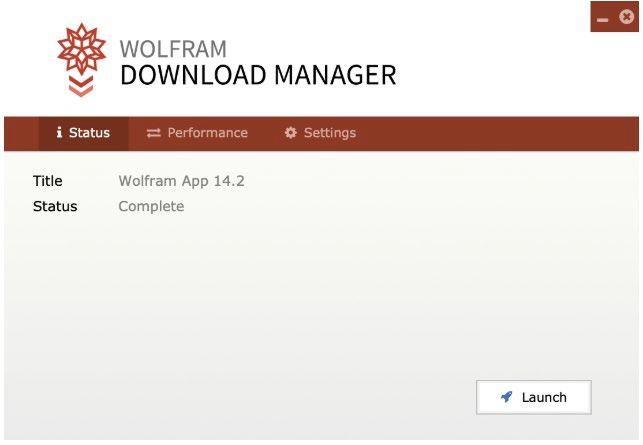
6) Once the download is complete, you’ll see the following screen. Click the Launch button to start the installer.
7) After the install is complete, you will complete the final activation by following the set-up prompts shown in sequence below.
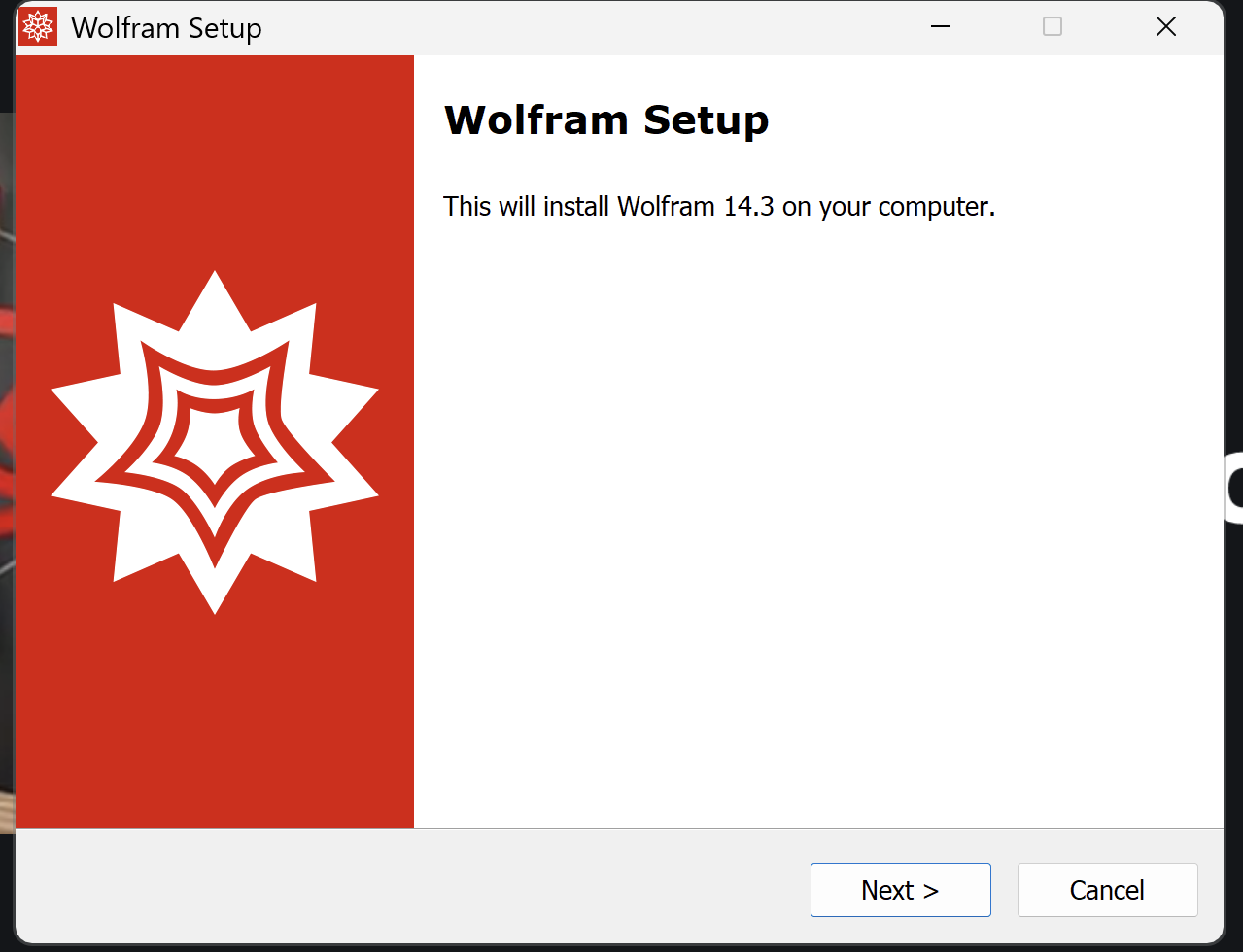
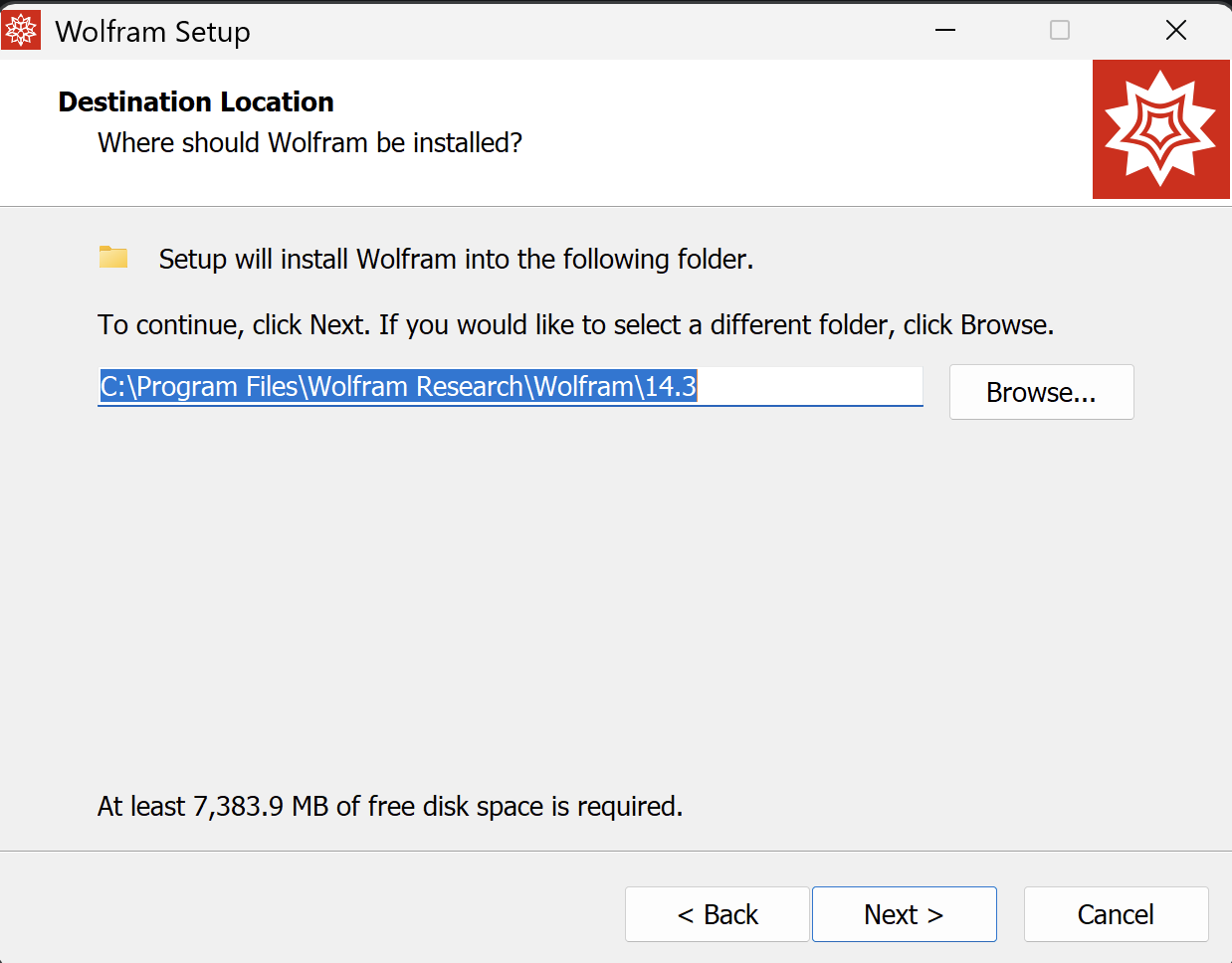
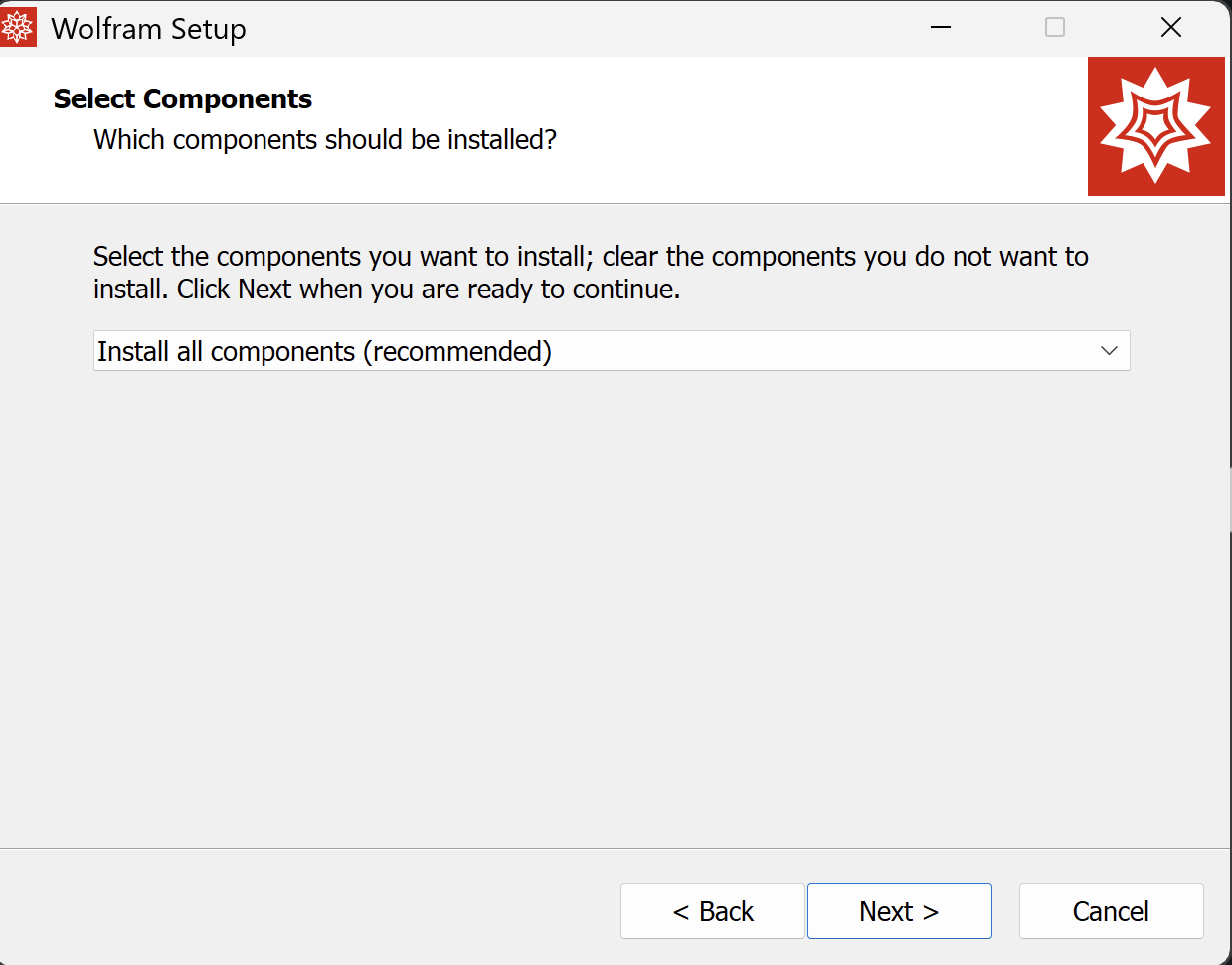
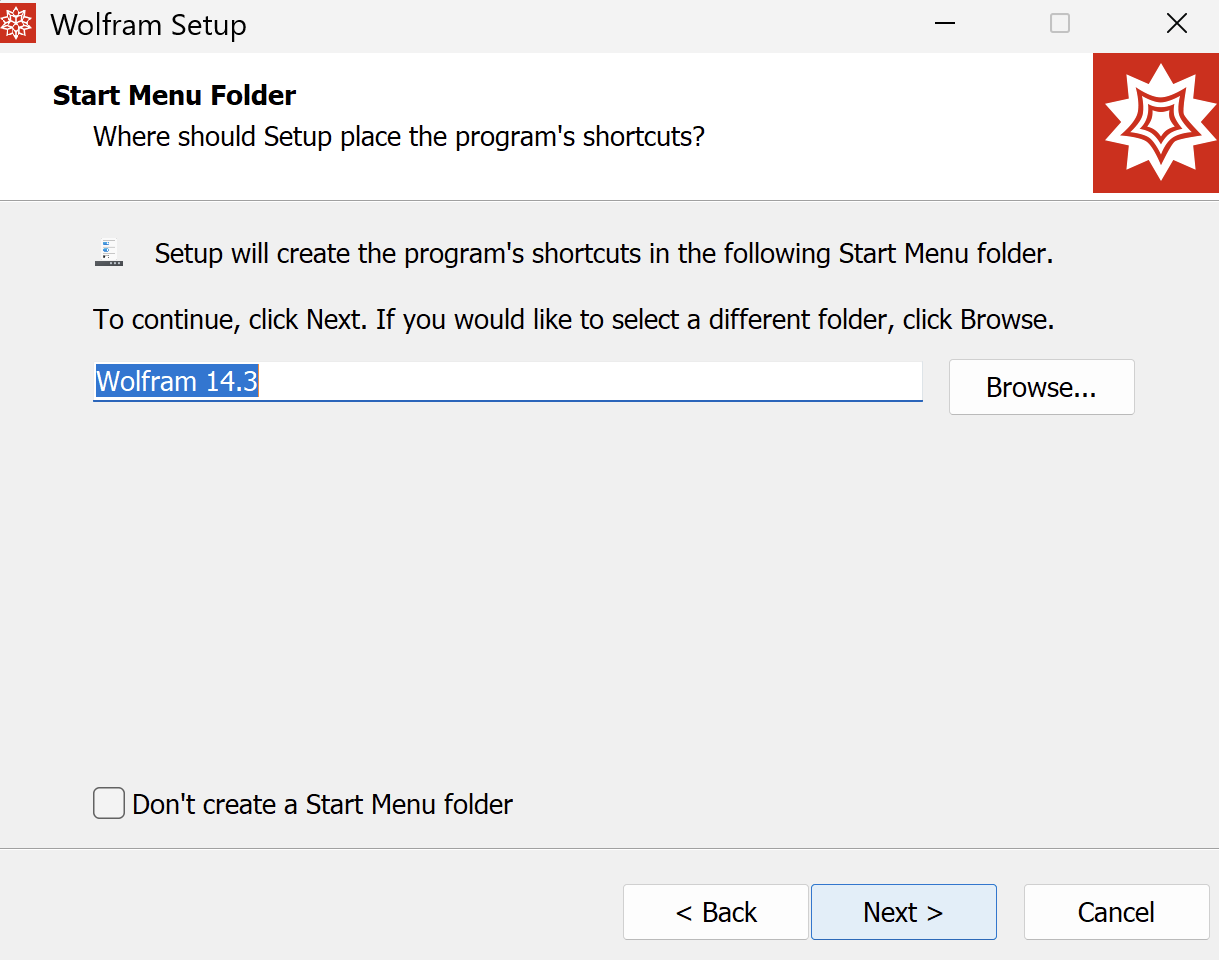
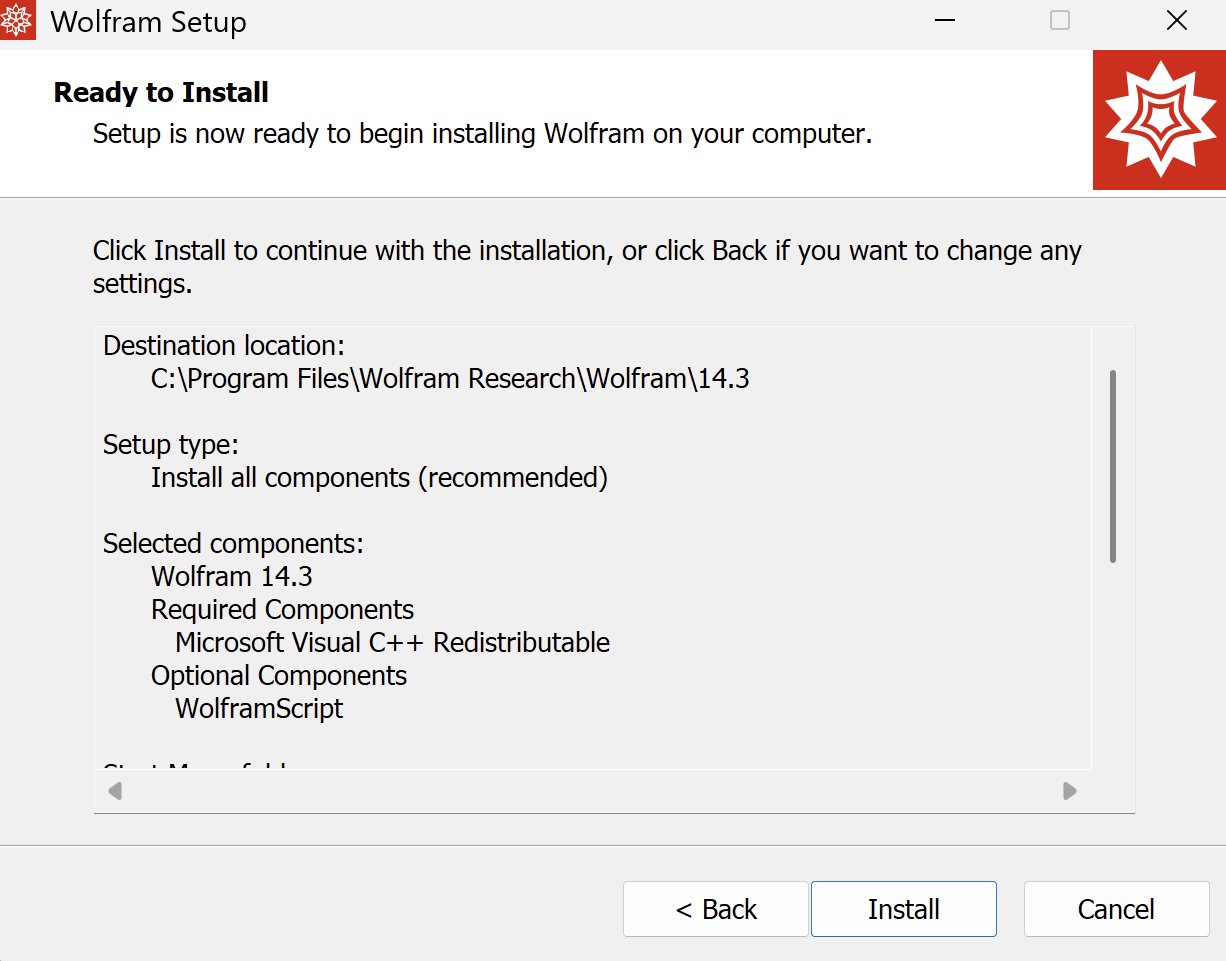
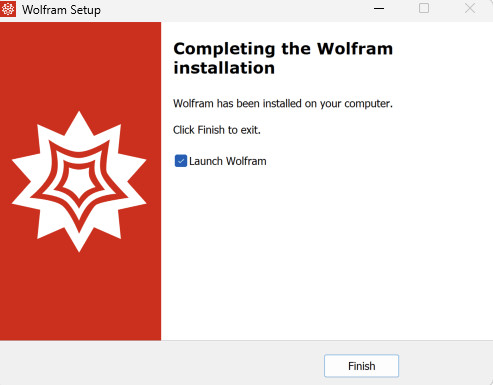
8) After the installation is complete, you’ll be prompted to Sign In to Activate Your Product.
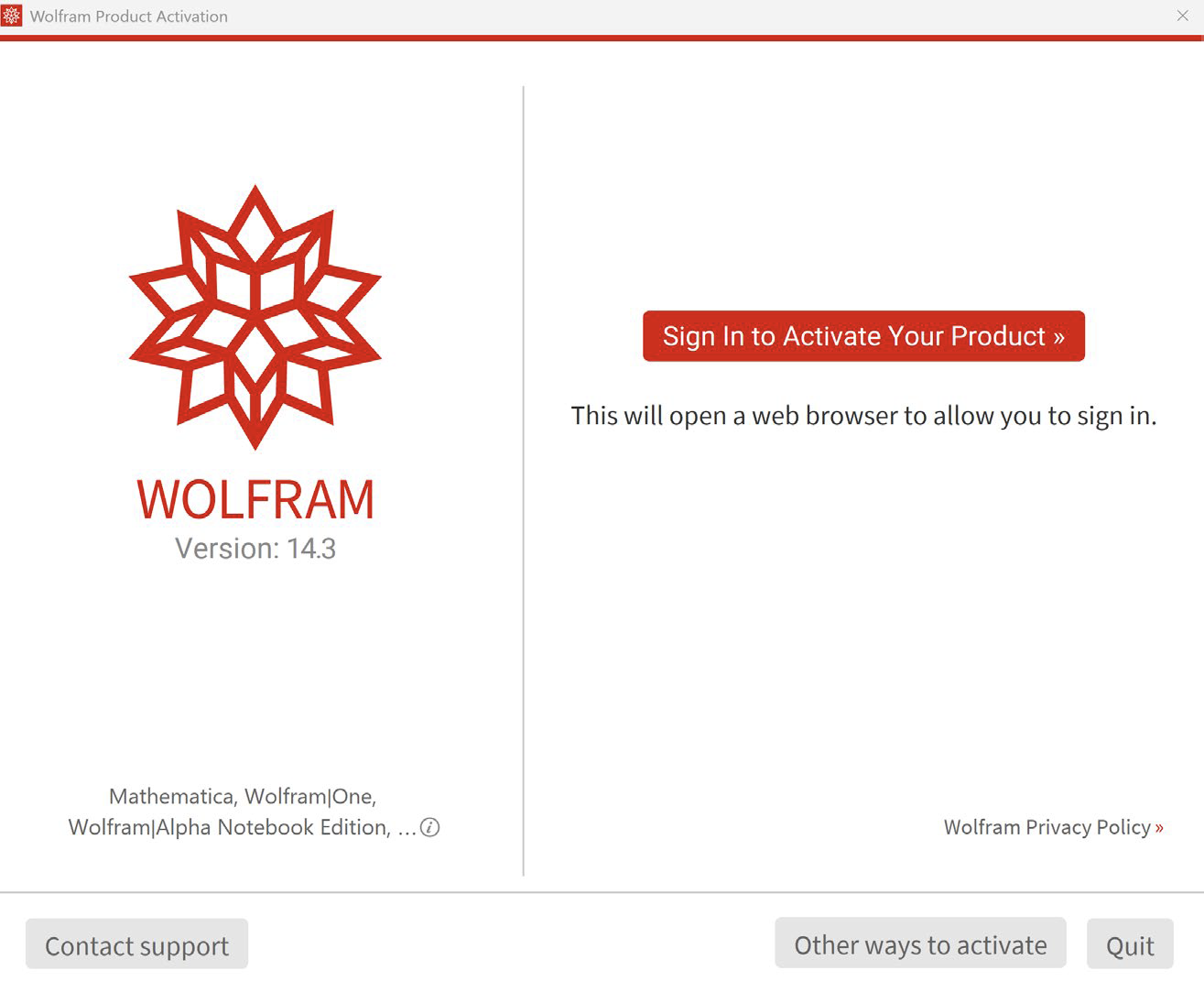
9) You will select and login using Single Sign-On once again.
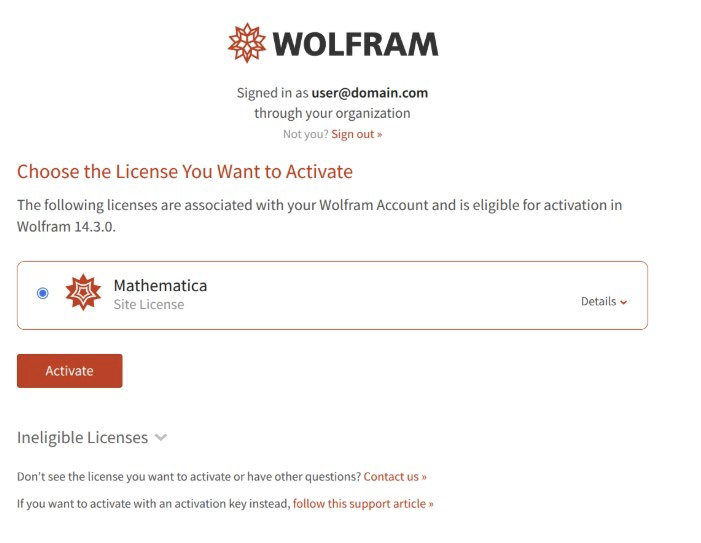
10) The Wolfram License Selection Page will appear next. You will choose the License you want to Activate and click Activate.
11) If Mathematica can directly connect with SSO, you’ll use your Okta credentials, and you’ll be all set.
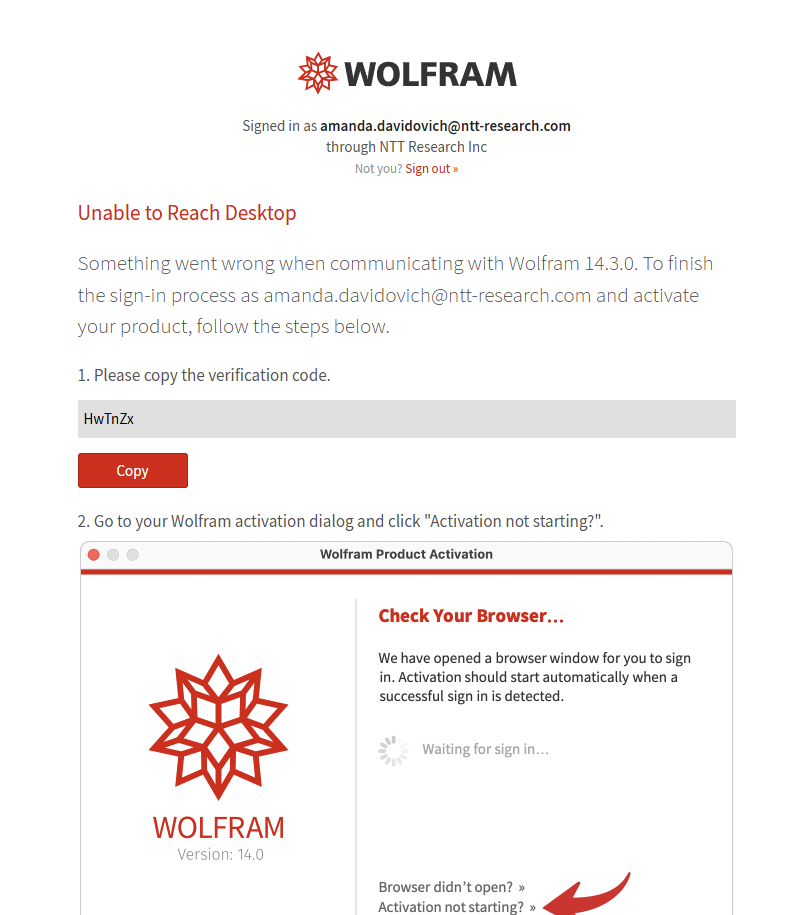
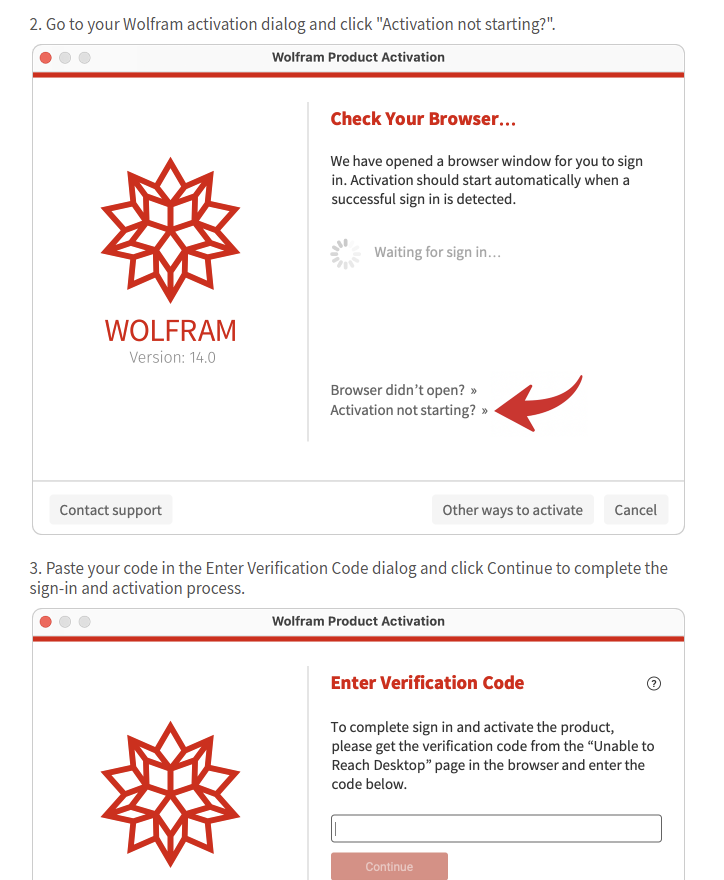
12) If Mathematica cannot directly connect with SSO, you’ll receive the below screenshot. Follow the instructions as shown in the series of screenshots below to activate your NTTRI license.
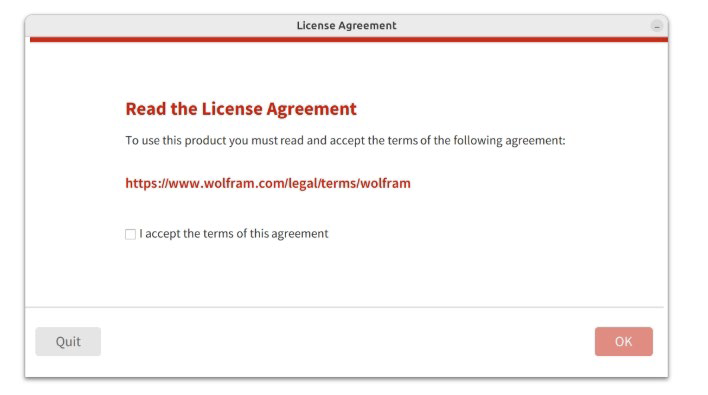
13) Once activated, your Wolfram Product’s License Agreement will appear, and you’ll check the box to accept the terms of the agreement and click OK.
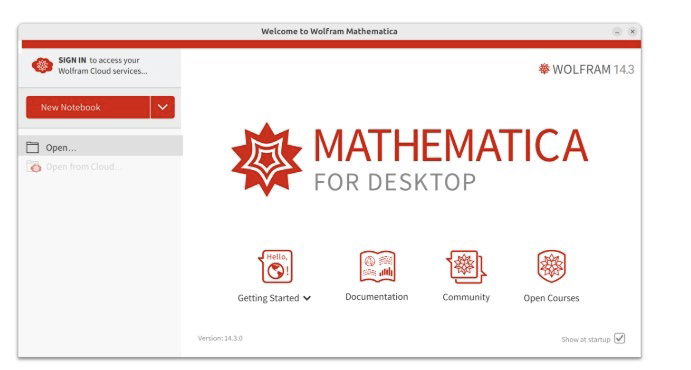
14) Mathematica’s startup screen will then appear, and you are all set to start using the Mathematica under the company’s sire-license.
Note: You will not need to do these steps again. You can access Mathematica directly on your laptop and on occasion you may be prompted to re-authenticate by confirming your Okta credentials, but the above steps are not necessary.

